Inspect Oximeter channel
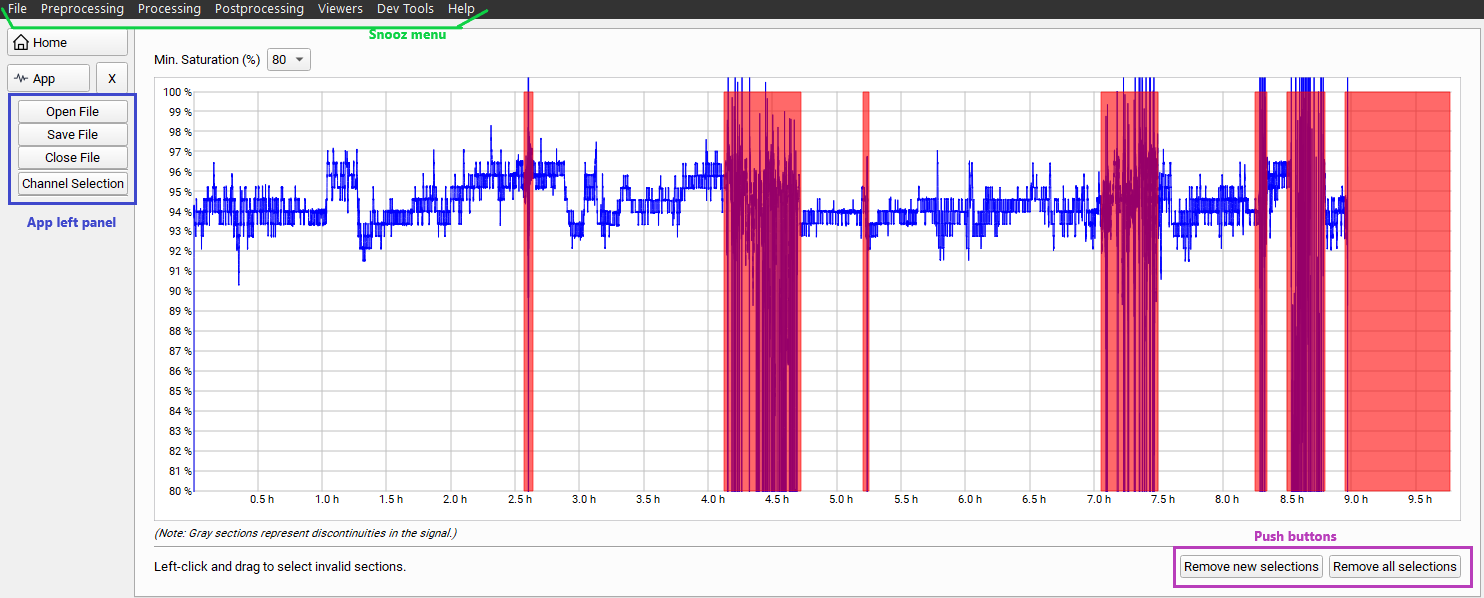
This viewer allows you to mark invalid sections on the oximeter channel in order to generate a valid Cohort Oxygen Saturation Report via the tool Report Oxygen Saturation. The invalid sections marked are saved as annotations in the accessory file.
Open a PSG file
To open the Oximeter inspector:
Navigate to the Snooz menu “Preprocessing” → “Inspect EEG channels”, and click on “Open File” in the left panel of the Viewer.
Select the “Montage” and the label to identify the “Oximeter channel”.
Warning
Please, do not interact with the Snooz interface while the file is loading.
Mark an invalid sections
To define an invalid section, left-click the mouse and drag to select the period of time the section is invalid.
Note
The invalid sections are displayed in red on the oximeter channel.
Remove invalid sections
Two push buttons allow you to delete invalid sections.
Remove new selections : remove all new selections, the ones just created via the Oximeter viewer, and keep the ones saved in the accessory file.
Remove all selections : remove all selections, including the ones already saved in the accessory file.
Save the selections
To save the selections as annotations in the accessory file, press the “Save File” button in the left panel of the viewer. A dialog window will inform the user when the file is saved.
The invalid section annotations are defined as : * group label: SpO2 * name label: art_SpO2 * start_sec: start time of the invalid section in seconds elapsed from the beginning of the recording. * duration_sec : the duration of the invalid section in seconds. * channels : the list of channels on which the section is invalid, e.g., the oximeter channel, such as ‘SpO2’.
Version History
- v2.0.0Distributed with CEAMS package version 7.2.0 — Snooz beta 2.0.1
Initial release of the tool.
- v2.1.0Distributed with CEAMS package version 7.3.0 — Snooz beta 3.0.0
Add minimum saturation line visualization and update instructional text