Inspect EEG channels
EEG Inspector is an interactive app for visually inspecting EEG data and creating artifact annotations for further analysis in Snooz. With the EEG Inspector, you can easily mark non-brain channels, bad channels, and noisy epochs to generate reliable annotations for preprocessing.
The tool works in several simple steps:
Open your EEG file and select a montage.
Select non-brain channels to mark them for exclusion.
Mark fully artifact channels via visual inspection.
Inspect and mark noisy epochs by segmenting your data.
Review the Power Spectral Density (PSD) of the cleaned signal.
Save your annotations for use in Snooz or other analysis tools.
Here is the overview of the steps taken to prepare annotations for a sample dataset:
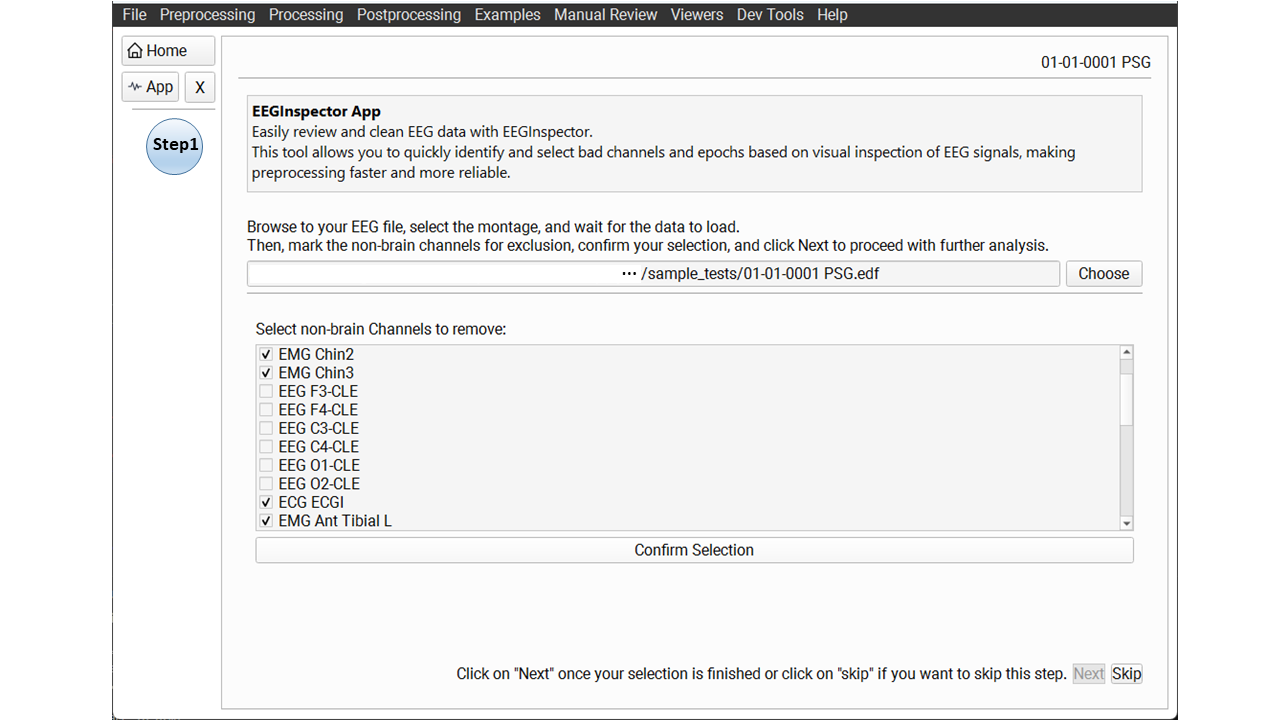
Step 1 – Open the EEG Inspector app and select a montage, then select non-brain channels (e.g., ECG, EOG) for exclusion.
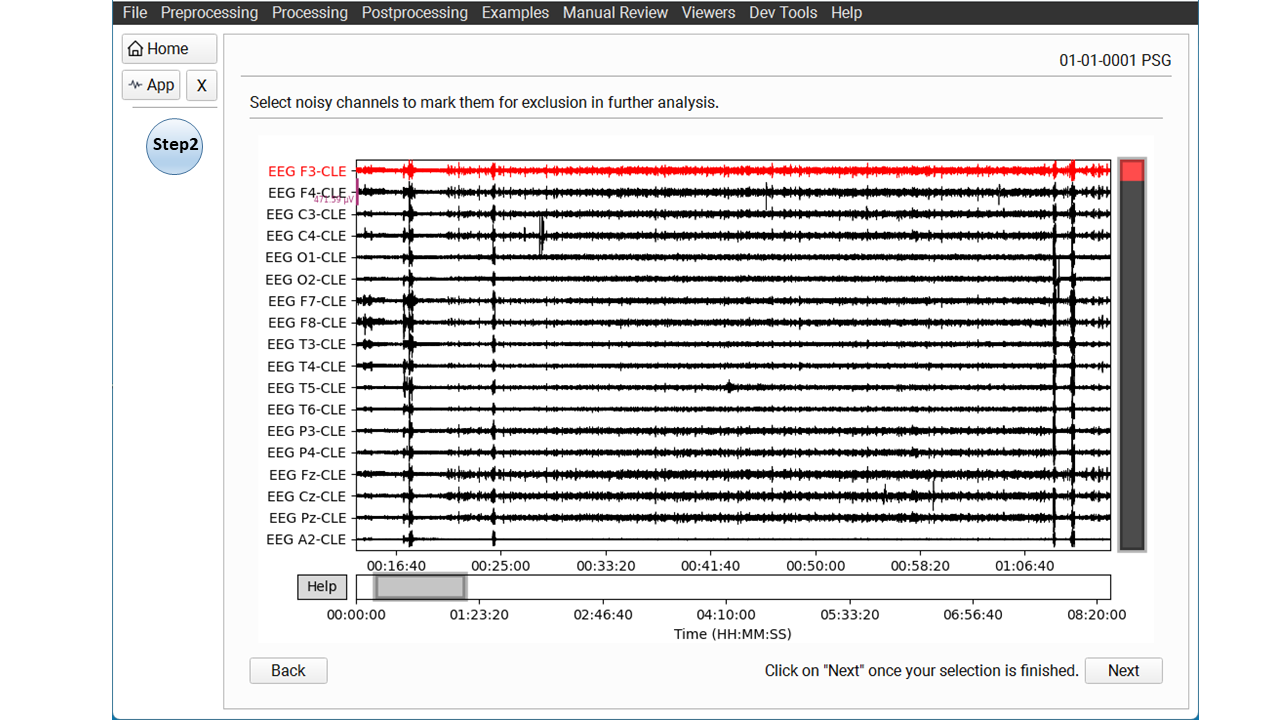
Step 2 – Visually inspect the EEG and mark fully artifact channels.
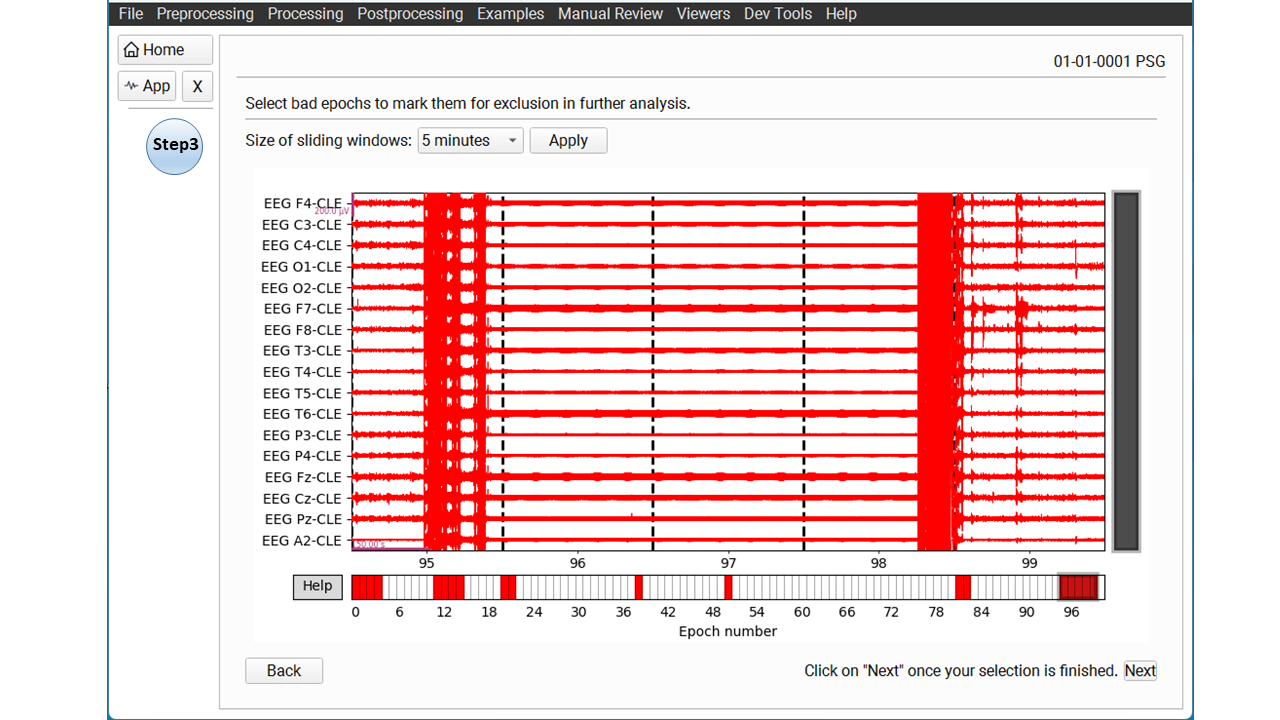
Step 3 – Segment the data into epochs and mark noisy ones.
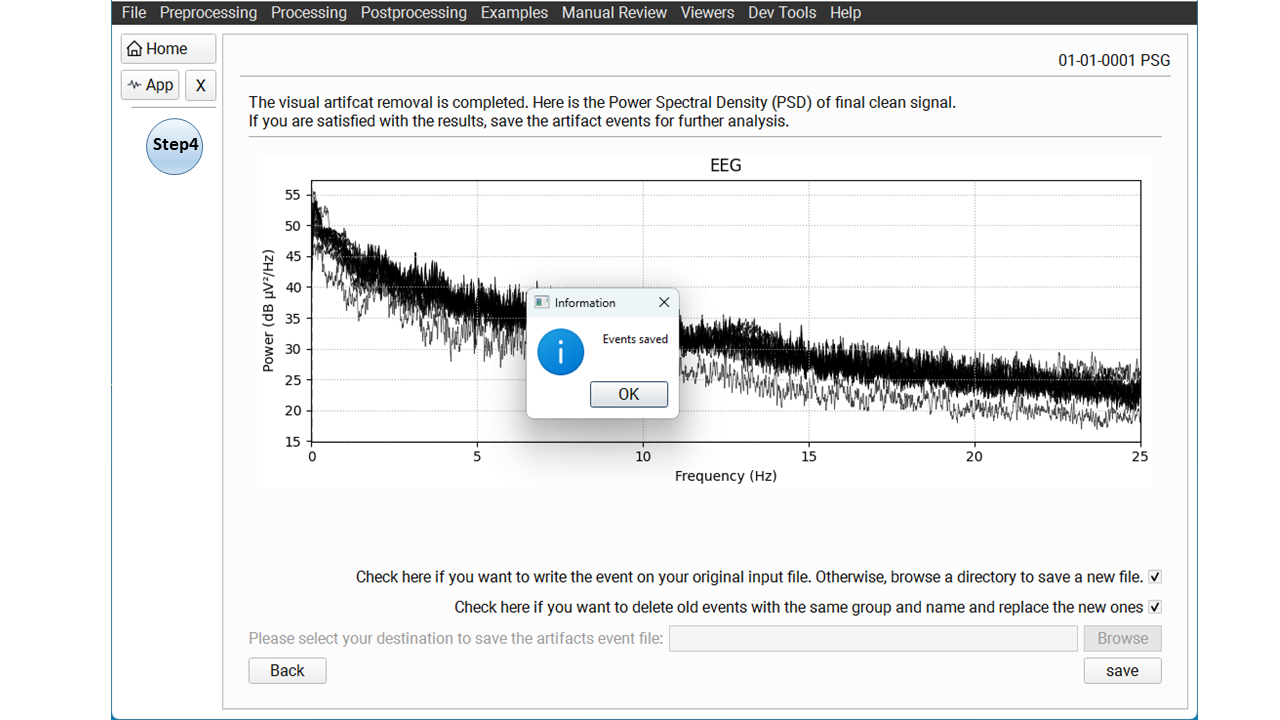
Step 4 – Check the PSD of cleaned signal and save the annotations properly.
Open your EEG file
To open the EEG Inspector in Snooz:
Navigate to “Preprocessing” → “Inspect EEG channels”.
Then, use the Browse button to select your EEG file.
After opening, select the appropriate montage.
A table will list all available channels.
Select non-brain channels
The app may automatically suggest some common non-brain channels.
If the suggested selection is not correct, you can uncheck any channels or check the correct ones manually.
Mark channels such as EOG, EMG, ECG, or other sensors that should be excluded.
Click Confirm Selection when done, or click Skip if you don’t need to remove any channels.
Wait for the data to load.
Warning
Do not interact with the Snooz interface while the file is loading.
Warning
The EEG Inspector currently supports only continuous EEG signals. If your signal is discontinuous, you will see an error. Support for discontinuous signals will be added in a future release.
Note
For visualization only, signals are downsampled to 250 Hz (if needed) and low-pass filtered at 100 Hz. This does not modify your original data.
Mark fully artifact channels
Once the data loads, a scrolling EEG viewer will open.
Click channels in the plot to mark them as fully artifact — they will appear in red.
Use the → and ← keys to scroll horizontally.
Press + or - to adjust amplitude scaling.
Hold Shift + → to scroll faster.
For more shortcuts, press Help in the bottom-left corner.
Note
For long sleep files, scrolling may have a small delay — please be patient.
When finished, click Next.
Inspect and mark noisy epochs
Your data will be automatically divided into epochs:
If your file is over 1 hour, you can choose 5 min or 15 min epochs.
If under 1 hour, you can choose 10 s or 30 s epochs.
Select the desired epoch length, click Apply, and inspect the segments.
Click on a noisy epoch to mark it — it will turn red.
Click Next when finished.
Review the PSD
In the final step, the app shows the Power Spectral Density (PSD) of the cleaned data.
Check the PSD to confirm that your signal is clean.
If satisfied, save your annotations.
Save annotations
Check Same File to write to the original file, or Browse to select a new file path.
To overwrite old annotations with the same group and name, check Overwrite.
Press Save File — a dialog will confirm that the annotations were saved.
Annotations are saved as:
group: art_inspector
name: non_brain, art_channel or art_epoch
start_sec: start time in seconds
duration_sec: duration in seconds
channels: list of affected channels
Your EEG data is now ready for reliable further processing in Snooz.
Version History
- v2.2.0Distributed with CEAMS package version 7.3.0 — Snooz beta 3.0.0
Initial release of the tool.