Modules
File structure
The default list of the files for a module is listed below :
Index |
Filename |
Description |
|---|---|---|
1 |
__init__.py |
File to indicate that the directory should be treated as a Python package. |
2 |
[MODULE].json |
The attributes of the module in JSON format.
This is used by Snooz to understand how to use this module in a process.
If at some point you need to change your inputs or outputs, you’ll need to modify this file.
|
3 |
[MODULE].py |
This is where the actual work of the module takes place.
The compute function will be called when the module needs to be executed in a process.
The parameters of the compute function are the input values of the module and the return object is the output.
|
4 |
[MODULE]SettingsView.py |
The class implementation of the “settings” tab when you double click on a module in Snooz.
Used to manually set the input values of the module.
|
5 |
[MODULE]ResultsView.py |
The class implementation of the “result” tab when you double click on a module in Snooz.
Used to show any kind of data resulting from the compute function of the module.
It’s often used to debug a process to see how the module behaved.
|
6 |
Ui_[MODULE]SettingsView.ui |
.ui files are XML descriptions of a UI. This file is used by Qt Designer,
a WYSIWYG tool for creating user interfaces in Qt. You won’t modify this file directly,
only through Qt Designer. This is the one for the “Settings” tab.
|
7 |
Ui_[MODULE]ResultsView.ui |
.ui files are XML descriptions of a UI. This file is used by Qt Designer,
a WYSIWYG tool for creating user interfaces in Qt. You won’t modify this file directly,
only through Qt Designer. This is the one for the “Results” tab.
|
8 |
Ui_[MODULE]SettingsView.py |
The Python file generated (uic) from the .ui file of the same name which is edited through Qt Designer.
You should not edit manually this file.
|
9 |
Ui_[MODULE]ResultsView.py |
The Python file generated (uic) from the .ui file of the same name which is edited through Qt Designer.
You should not edit manually this file.
|
Note
- MODULE
Please note that [MODULE] should be replaced by your module name.
json file
An example of a JSON file for a module with two inputs (i.e., input1, input2) and one output (i.e., output1) is shown below.
The module is named ModuleA and is located in the Examples category (menu) of the package MyPackage.
{
    "item_name": "ModuleA",
    "item_type": "module",
    "item_api_version": "1.0.0",
    "dependencies": [
    ],
    "module_params":{
        "cls":"ModuleA",
        "name":"ModuleA",
        "metadata":{},
        "file_location":null,
        "module":"MyPackage.ModuleA",
        "module_label": "Module A",
        "module_category":"Examples",
        "module_author":"",
        "module_url":"",
        "module_description":"",
        "module_options":{},
        "inputs": {
            "input1": {
                "name": "input1",
                "value": "",
                "connections": {},
                "sub_plugs": {}
            },"input2": {
                "name": "input2",
                "value": "",
                "connections": {},
                "sub_plugs": {}
            }
        },
        "outputs": {
            "output1": {
                "name": "output1",
                "value": "",
                "connections": {},
                "sub_plugs": {}
            }
        }
    }
}
Ui_SettingsView.ui
.ui files are XML descriptions of a UI. The UI from the SettingsView file is displayed in the “Settings” tab of the module. You will edit the SettingsView.ui file using Qt Designer (right-click and select Edit Qt UI File (designer) ). Explaining how Qt Designer works is beyond the scope of this documentation, but you will find many tutorials online.
Inputs of your modules can be generated by other modules, such as signals, lists of events, or annotations. However, some inputs are user-editable parameters, and it is best practice to have a UI that allows users to edit them.
By default, the file generated by the python main_utils.py script will contain a text field for all the inputs of the module.
It is a good idea to create a more specific user interface for your module that better suits your needs.
This file can also be used later as a step in a tool, so it’s advisable to make it as user-friendly as possible.
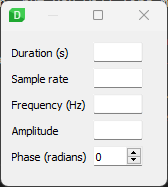
Below is an example of the Settings View of the SignalGenerator module from the ExampleModulePackage (see Explore examples for more details) :
Ui_SettingsView.py
The Python file for the Settings View UI. You should not manually edit this file, as it is generated from the Ui_SettingsView.ui file, which is edited using Qt Designer. To generate the Ui_SettingsView.py, right-click on the Ui_SettingsView.ui in VC Code and select Compile Qt UI File(uic).
SettingsView.py
The python SettingsView file links the Settings View UI with the module. Every interaction between the user and the UI needs to be handled in SettingsView.py.
Let’s define what is needed to properly handle the Duration (s) parameter from UI shown above.
The parameter Duration (s) needs to be sent to the input duration of the module SignalGenerator.
Subscribe
Subscribe to the message publisher (in the constructor) to send the value of duration as a message to the input of the SignalGenerator module. Here, the goal is simply to define the topic used for the duration parameter.
def __init__(self, parent_node, pub_sub_manager, **kwargs):
    # Subscribe to the proper topics to send/get data from the node
    self._duration_topic = f'{self._parent_node.identifier}.duration'
    self._pub_sub_manager.subscribe(self, self._duration_topic)
Apply settings
The on_apply_settings function is used to send the extracted value from the UI as a topic to the publisher.
The value is read from a QLineEdit defined in the UI and is sent with the topic defined in the constructor.
The on_apply_settings function is called when the user clicks “Apply” in the module’s Settings View.
def on_apply_settings(self):
    """ Called when the user clicks on "Apply"
    """
    # Send the settings to the publisher for inputs to SignalGenerator
    self._pub_sub_manager.publish(self, self._duration_topic, str(self.duration_lineedit.text()))
Load settings
Each module is described with its JSON file (see json file), which includes default values for inputs.
The load_settings function allows you to ping the publisher to check if there is a default value for a specific input.
def load_settings(self):
    """ Called when the settingsView is opened by the user
    Ask for the settings to the publisher to display on the SettingsView
    """
    self._pub_sub_manager.publish(self, self._duration_topic, 'ping')
Response
The on_topic_response function handles the response from the ping described above.
It reads the message from the pubisher to update the Settings View UI.
Thus, the Duration (s) field in the UI will display the default value (if any) read from the JSON file.
def on_topic_response(self, topic, message, sender):
    """ Called by the publisher to init settings in the SettingsView
    """
    if topic == self._duration_topic:
        self.duration_lineedit.setText(message)
ResultsView.ui
By default this file doesn’t show anything but can be modified to display important information about the execution of a module. Particularly useful for developers to have a view of what is happening inside their module.