Tools
This section describes how to use tools within Snooz.
Polysomnography file format
The only accepted format for polysomnography is the European Data Format (EDF). For more details, see European Data Format. Snooz can also read signals from the EDF+ format; however, annotations must be imported from the EDF+ file into a .tsv (Tab-Separated Value) format compatible with Snooz. See Import EDF Plus Annotations for more details.
Note
CEAMS users have access to two additional PSG file formats:
Harmonie (up to version 6.2): The signal recording file is a .SIG file, while the accessory file for sleep staging and annotations is a .STS file.
NATUS (version 9.1): The entire recording folder is required. This folder typically includes files such as .eeg, .ent, .epo, among others.
Annotations file format
The columns of the annotations file are as follows:
group : The category of the annotation (annotations with different names can be grouped into the same category), e.g. artifact
name: The text label of the annotation, e.g., art_snooz
start_sec: The onset of the annotation in seconds, e.g., 300
duration_sec : The duration of the annotation in second, e.g., 30
channels : The list of channels on which the annotation occurs, e.g., [‘LOC’, ‘ROC’]
To have an example of the Snooz annotations file see Snooz_accessory_file.tsv
The Snooz accessory .tsv file is human-readable and can be opened in any text editor or spreadsheet application (such as Excel). Items are separated by tabs, and decimal points are marked with a dot. The encoding format is UTF-8.
Item separator : t
Decimal separator : .
Encoder format : UTF-8
Many converters have been implemented in Snooz in order to create the Snooz accessory file for your cohort. I recommend exploring the preprocessing category to see if your annotation files can be converted into Snooz accessory files. The Snooz accessory file can be imported in the open-source universal viewer EDFbrowser. For more details, see EDFbrowser compatibility.
Sleep staging
Sleep stages are represented by numbers in Snooz, as shown in the lookup table below:
Description |
name |
|---|---|
Awake |
0 |
N1 |
1 |
N2 |
2 |
N3 |
3 |
REM |
5 |
Unscored |
9 |
Sleep staging is included in the annotation file. Snooz expects sleep staging annotations to be grouped by stage, and the annotation name represents the corresponding stage.
Warning
Users can rename their sleep stages according to this table using the “Edit Annotations” tool under the Preprocessing menu. S4 stages are not supported in Snooz—please rename them as N3 for minimal compatibility.
Note
To download a sample accessory file containing only sleep stages : snooz_sleep_stages.tsv
Navigate in the step-by-step interface
Here is an example of an empty tool to show you around.
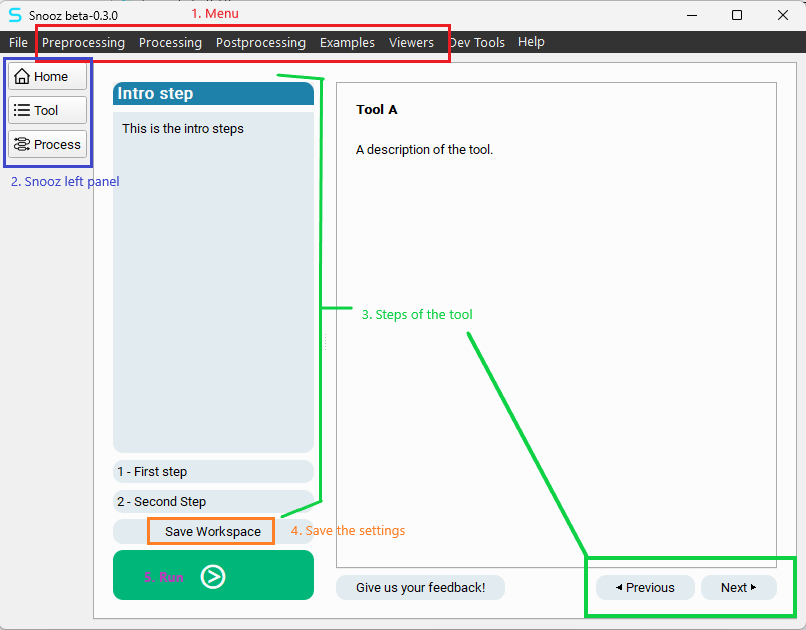
1. Launch the tool from the menu bar of Snooz.
2. The Snooz left panel allows you to navigate across views.
Note
Home : The Snooz Home page with the recents files list.
Tool : The step-by-step interface for the current tool.
Process : The pipeline with the interconnected modules.
3. The steps panel and the “Previous” and “Next” buttons allow you to navigate through each step of the tool.
Note
The introduction step is the home page of the tool. It describes how to use it.
The number of steps is specific to each tool.
Each step describes what the user must define as settings.
4. The user can save the workspace (.json file) at any moment. The workspace includes all the settings defined by the user in the current tool.
5. Press the green push button to run the tool.
Warning
The user will be informed if a required setting for the run has not been defined by the user.
Load workspace
A workspace can correspond to a tool with some or all of its settings predefined for a specific analysis—including recordings and channel selections.
To open a previously saved workspace, navigate to the menu File -> Load Workspace.
In the file browser window, select the
.jsonfile and click Open.
Warning
The .json file includes the Snooz API version (e.g., "package_api_version": "2.0.0") as well as any package dependencies.
Make sure to use a workspace compatible with your installed version of Snooz.
If you’re continuing an analysis started with an older version of Snooz, the workspace file may be obsolete.
As a workaround, simply import the recordings and the corresponding channel selection directly into the tool using the menu from the newly installed version of Snooz. See Import recordings with corresponding channels.
Import recordings with corresponding channels
Many tools offer the option to import recordings along with their corresponding channel selections, typically in Step 1 - Input Files.
You must first export the file selection in order to be able to import it.
Export file selection
To use the import feature, you must first add your PSG files, select the montage and channels, and define any aliases if needed.
Then, export the recordings along with their channel selections by clicking the Export button in Step 1 - Input Files, as shown in the figure below.
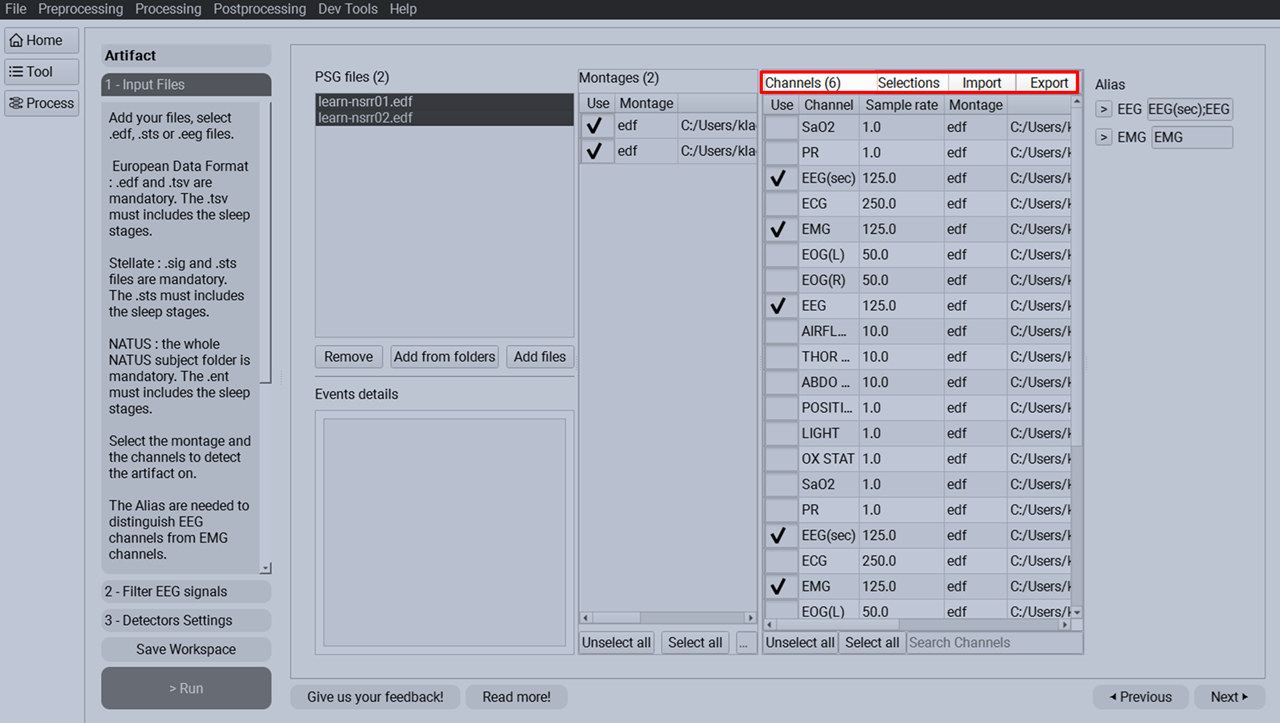
The user will be prompted to select an existing folder where the file selection will be exported. A confirmation message will indicate whether the export was successful.
Two files will be exported:
Snooz-Chan-log-{current date}.txt : A text file logging the selected channels for each recording.
Snooz-Files-{current date}.txt : A text file used by Snooz to import a predefined list of files along with their corresponding channels.